
How To: Setup a L2TP Virtual Private Network on Windows 10

Important: You need to have a server that is already configured to accept L2TP connections and have a suitable active profile.
Virtual Private Networks (VPN) allow you to connect securely to a server for either private or business usage allowing you to connect to resources such as mail or internet securely when you are in a public environment such as a coffee shop or hotel Wi-Fi.
Click Start > Settings > Network & Internet > VPN > Add a VPN Connection

Click start
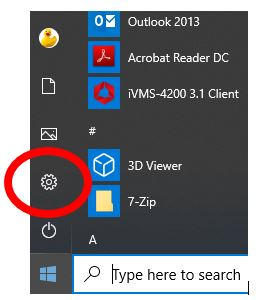
Click Settings
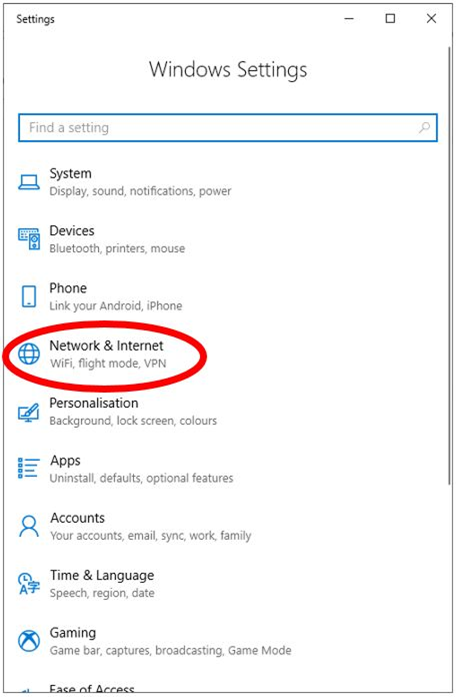
Click Network & Internet
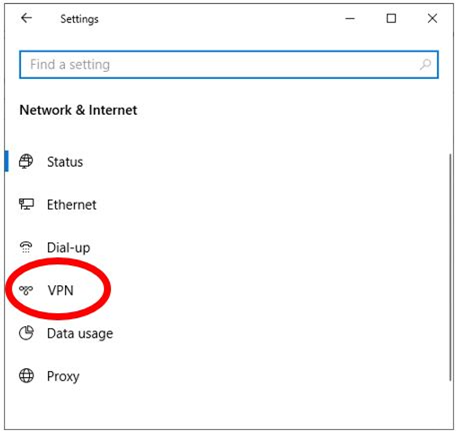
Click VPN
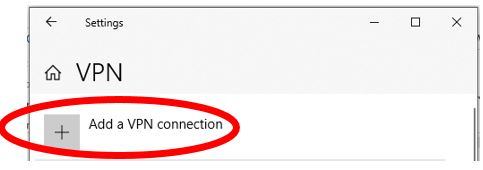
Click Add a VPN
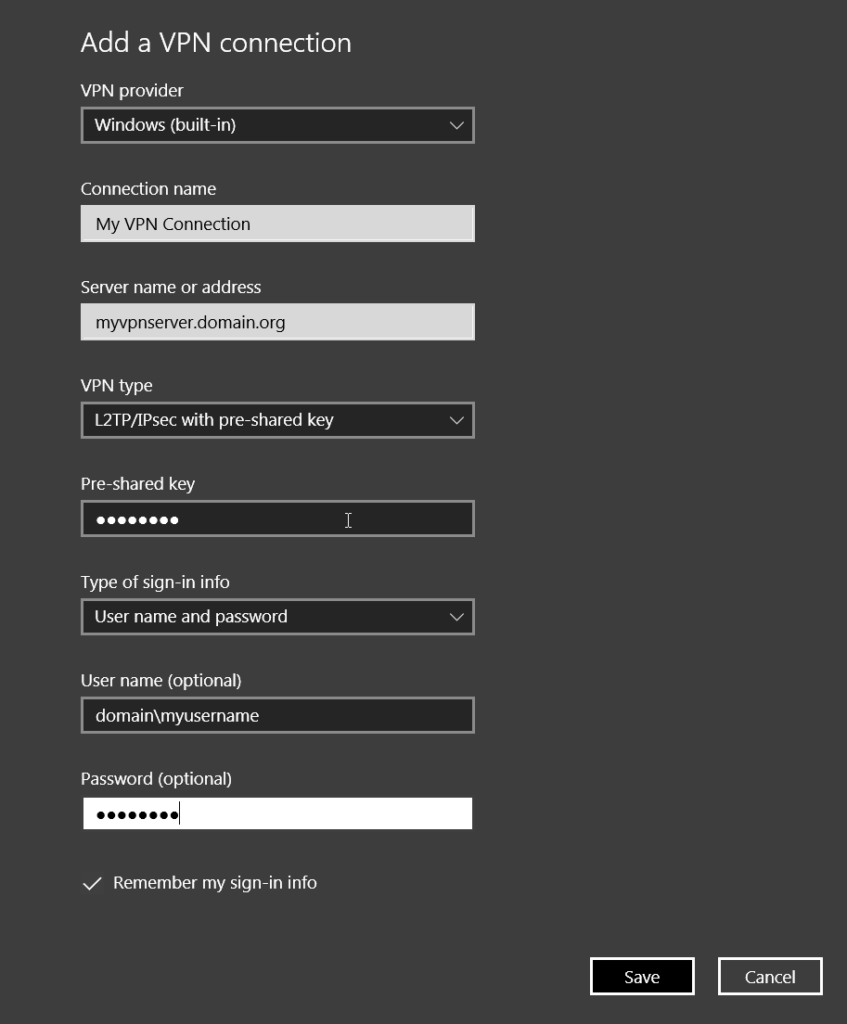
- For VPN provider, choose Windows (built-in).
- In the Connection name box, enter a name you’ll recognize. This is the VPN connection name you’ll look for when connecting.
- In the Server name or address box, enter the address for the VPN server.
- For VPN type, choose L2TP/IPsec with pre-shared key
- For Type of sign-in info, choose the type of sign-in info (or credentials) to use. This is normally a username and password.
- Click Save
Now that we have created the VPN we are going to configure if for use with a L2TP server.
Click Start > Settings > Network & Internet > VPN > Add a VPN Connection
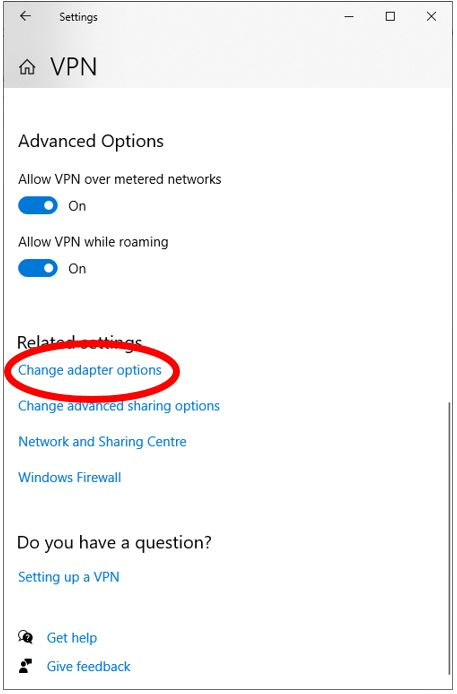
Click Change adapter options

Right click on the Adapter whose name matches the VPN we created earlier.
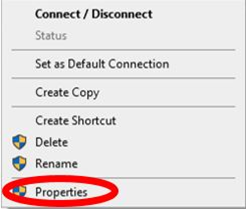
Click Properties
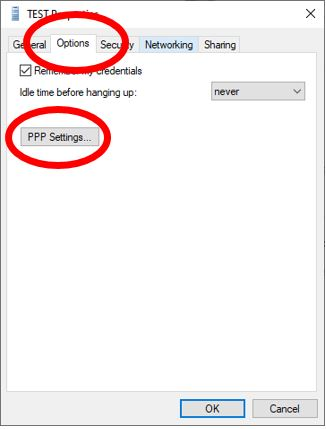
Tick all the boxes
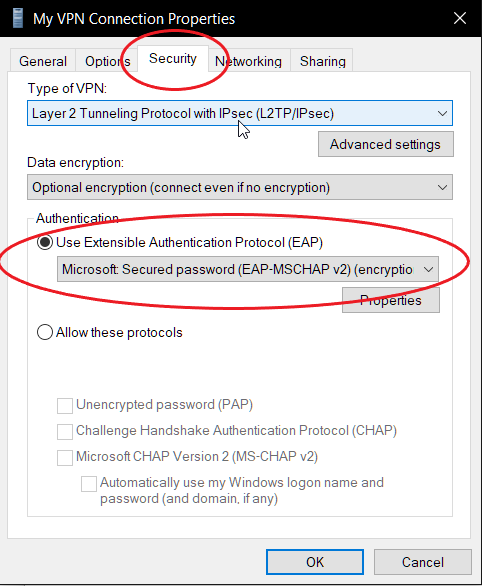
- Select the Security tab.
- From the dropdown menu select Layer 2 Tunneling Protocol with IPsec (L2TP/IPsec)
- Select Microsoft Secured password (EAP-MSCHAP v2)
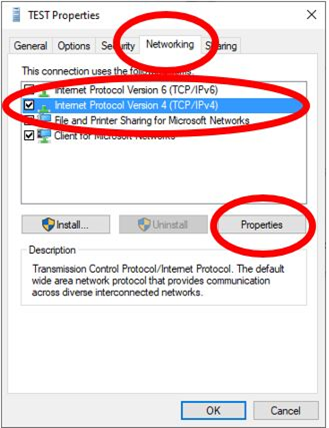
- Select the Networking tab.
- Select Internet Protocol Version 4 (TCP/IPv4)
- Click Properties
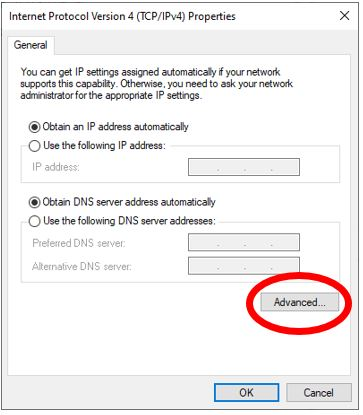
Click Advanced.
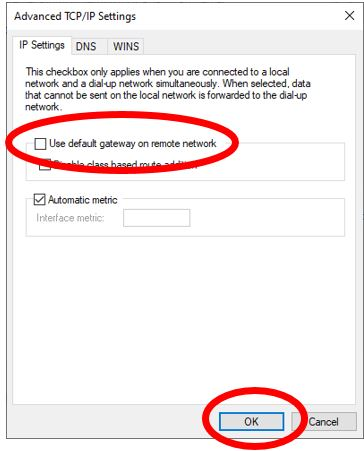
- To connect directly to the internet while the VPN in connected untick Use default gateway on remote network.
- To connect to the internet through your corporate network leave this block ticked
And to finish:
Click OK > OK > OK > OK
Lastly you need to add a registry entry to allow the VPN to work in cases where your VPN server is behind a firewall that does Network Address Translation (NAT), ask your network admin if this is the case.

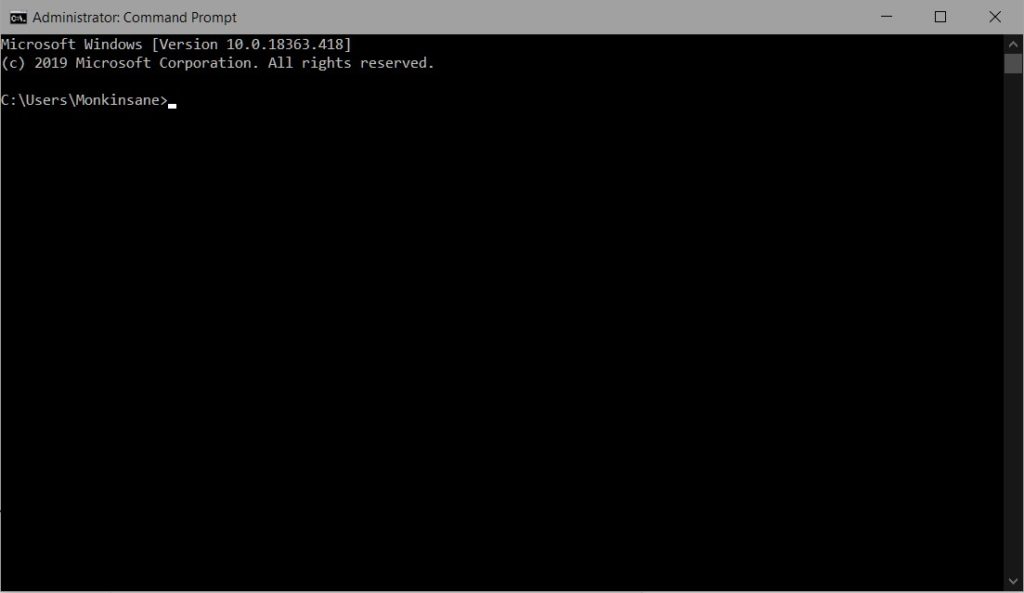
Click on start, and type cmd. On the search item that comes up (cmd or command prompt), right-click and click on Run as Administrator – Click Allow/Yes if you get a User Account Control Prompt.
A window like this will pop up:
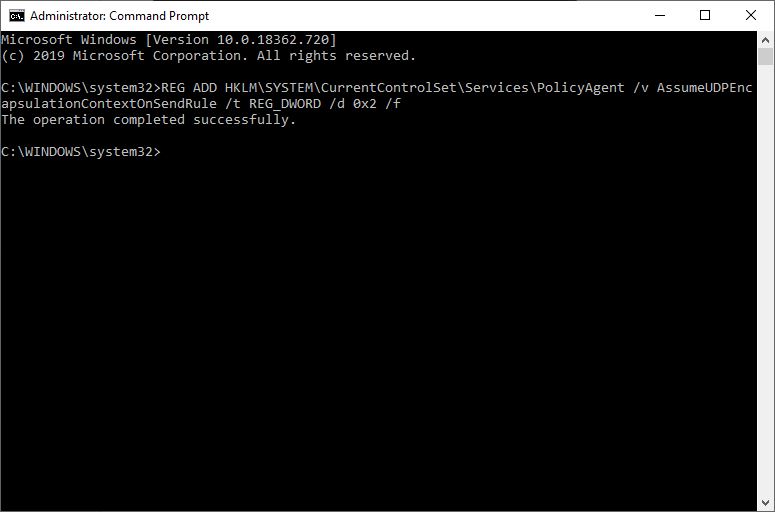
Type the following command in there and press Enter:
REG ADD HKLM\SYSTEM\CurrentControlSet\Services\PolicyAgent /v AssumeUDPEncapsulationContextOnSendRule /t REG_DWORD /d 0x2 /f
And you are done!
